
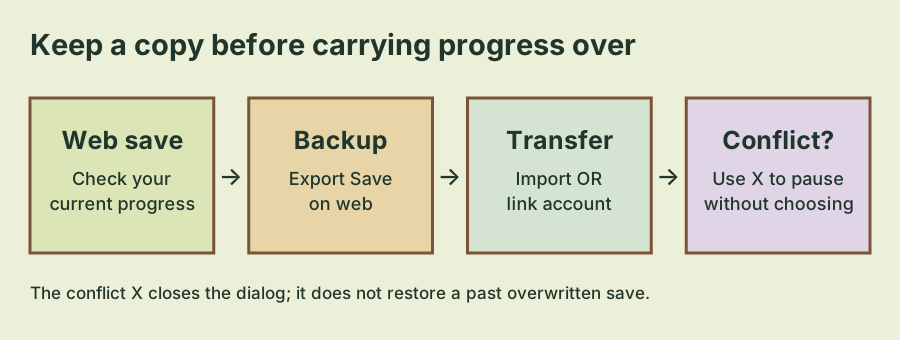
Choose import or account linking
The October 2 Steam release announcement gives existing web players two ways to carry progress over: import a save, or link the web account through the profile on the start screen. It also announces automatic Steam sign-in and optional progress sharing with an existing Birb web account.
Choose the method that matches the progress you want to keep. Import is the file-based route named by the developer; account linking is the account-based route. They are alternatives in the announcement, not a requirement to perform both in sequence. Doing both before checking the result can make a mismatch harder to understand.
For either route, begin with the web copy that contains the progress you intend to preserve. A familiar player name alone is not enough to identify the best save if you have played on more than one device or platform. Check recognizable milestones such as your bird's evolution, nest tier and companion progress before you begin.
Back up the web save first
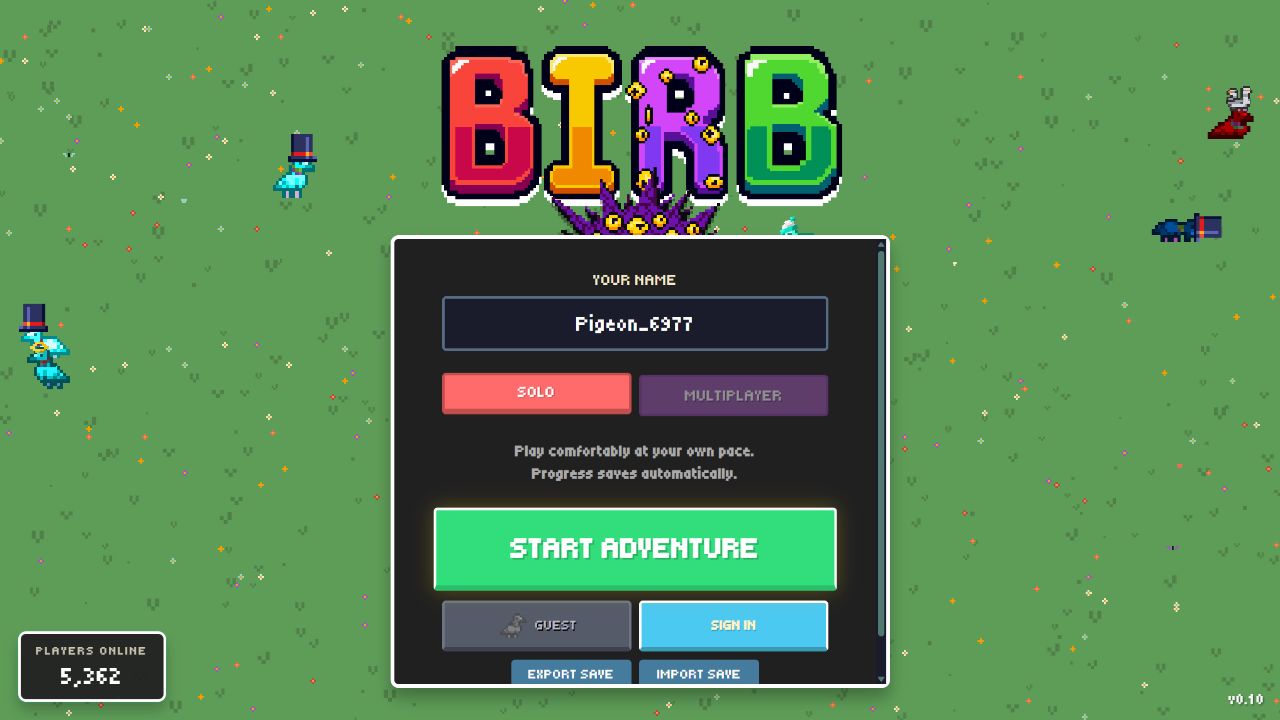
The official web game's start screen has Export Save and Import Save controls. The export control is the starting point for keeping a separate copy of the current web progress. Save that export somewhere you can find again, and keep the original file while you test the transfer.
These are observed web controls, not a claim that every Steam menu uses exactly the same wording or layout. The developer confirms Steam import support but does not describe every button in the Steam import flow in the release announcement. Follow the current game's prompts when selecting the exported file.
- Open the official web game where your intended progress is present.
- Check the visible progress before exporting, rather than relying only on memory.
- Use Export Save and retain the resulting backup.
- Record a few non-sensitive milestones you can compare afterward.
- Start the transfer method you chose and check the loaded result before continuing to play.
An export is a backup, not a reason to edit the file. This site does not need your save and provides no upload form. Keep saves, credentials and account-recovery information private. Do not paste them into a public discussion when asking about a mismatch.
Use the profile for account linking
For linking, the developer directs players to the profile on the start screen. That is the confirmed entry point for connecting the existing web account. Steam sign-in on its own should not be confused with proof that your chosen web progress has already been shared: the announcement describes sharing with an existing account as optional.
Before confirming any choice that identifies a save, compare the progress shown with the milestones you recorded. If the result does not match, pause there. Continuing to play on an unexpected copy can create additional differences, making the two versions more difficult to compare later.
Keep the backup even after the first successful check. Verify the important progress you actually care about, rather than a single cosmetic or one number. For example, a returning late-game player could compare Evolution and nest progression, then companion progress. These are comparison examples, not a claim about a built-in transfer checklist.
Close a conflict before guessing
The October 2 changelog states that the progress-conflict dialog now always offers an X to close it without choosing or overwriting either save. If you cannot identify the version you want, closing the dialog is the documented way to avoid making that choice immediately.
| What you see | What to do next |
|---|---|
| Imported or linked progress matches your intended save | Check the milestones that matter before carrying on. |
| Two saves are offered and you are unsure which is correct | Use the X to close the conflict without selecting either one. |
| One copy looks newer but has less recognizable progress | Compare several milestones; do not use one label as the sole deciding factor. |
| The progress you expected is missing | Preserve the backup and describe the mismatch to the developer. |
The X is a pause, not a recovery feature. The release notes do not say it restores a save that was overwritten earlier. Equally, this guide does not promise that a cloud copy or an older export will recover every change. Keep those questions separate from the confirmed ability to close a conflict without choosing.
Verify the transfer without risking another overwrite
After a transfer, the practical question is whether the active copy contains the progress you intended. Compare the same milestones on each side. Avoid importing several different files in succession just because the first result feels unfamiliar; first identify which file and method produced that result.
If the evolution is correct but a nest tier is blocked, that may be a progression question rather than a transfer failure. The Nest Tier IV guide explains the Evolution VI requirement and the older-save Archivist trigger. A missing unlock is not automatically proof that the whole save is wrong.
For a cosmetic target, compare its stated conditions independently. The Geode Helmet guide explains why reaching Mine area 100 alone does not satisfy that unlock. This kind of check helps distinguish an incomplete objective from a mismatch between saves.
If you need help, describe the platform, transfer method, approximate time and the progress difference in plain terms. Use the support options on the official game or developer page. A useful report says what was expected and what appeared; it does not require a password or a public copy of the save.
Does moving to Steam end web access?
The developer says the web version remains free, has no time limit and receives the same updates at the same time as Steam. Steam's launch does not mean existing web players must abandon that version. Account linking and importing provide choices for players who want to use Steam.
The announcement supports those platform choices, but it is not a detailed specification for every possible simultaneous-session scenario. The September update also improves protection against conflicting browser-tab saves. As a cautious transfer procedure, compare one active copy at a time until you are satisfied with the result.
The methods and conflict behavior above come from the October 2 announcement; the export/import controls were checked on the official web start screen on October 4. Steam's complete transfer interaction has not been independently replayed for this guide.
Developer sources
Reviewed October 4, 2026. The dated updates linked below explain the requirements covered here.
- October 2, 2026 — Steam release — Developer announcement: web-to-Steam transfer, the Geode Helmet, save-conflict closing and Carpentry pricing changes.
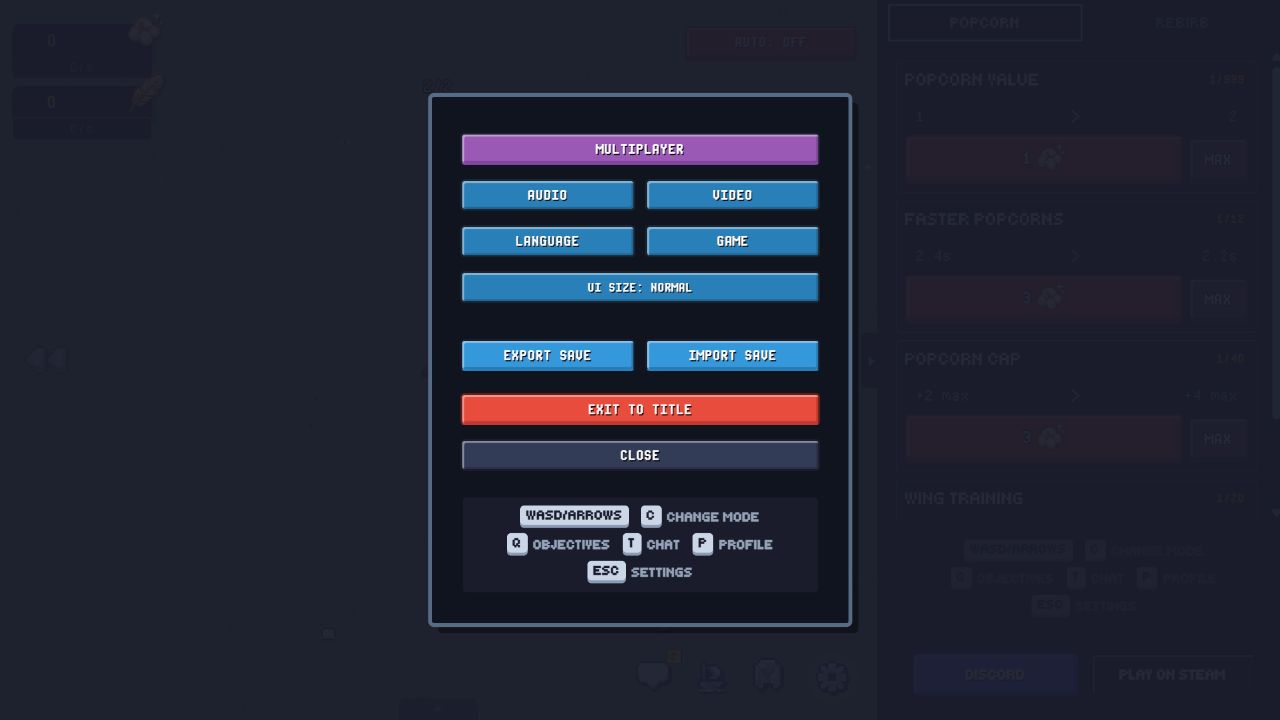
- Official Birb web game — English v0.10 start screen, initial single-player Popcorn shop, settings and keyboard hints observed and captured October 4; no account login, import, Evolution, advanced Mine or breeding performed.